Self-Hosted AI Agent on Oracle Cloud Always Free (1GB VPS, Zero Public Ports) - PicoClaw + Tailscale
Run a private AI agent 24/7 on Oracle Cloud Always Free (1GB VPS): zero public ports, Tailscale VPN, optional Telegram control, and systemd uptime.
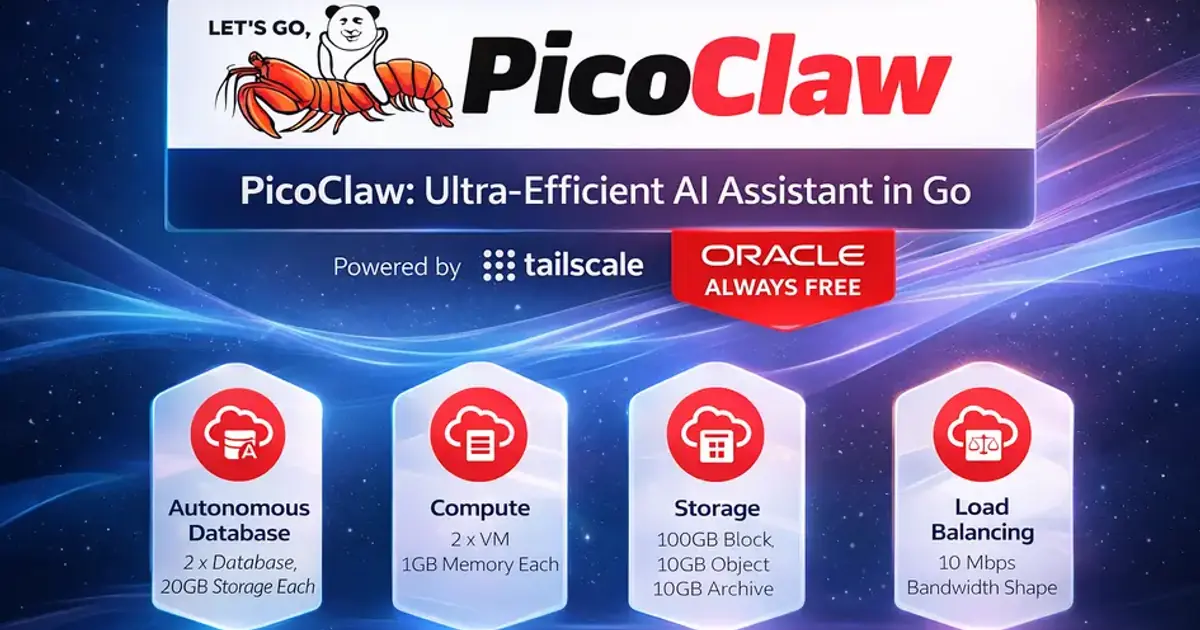
Introduction#
If you want an always-on, private AI assistant but do not want to pay for servers or manage Kubernetes, this setup gives you exactly that: a self-hosted AI agent on Oracle Cloud Always Free (1GB VPS) secured behind Tailscale VPN with zero public attack surface.
By the end of this guide, you will have a private AI agent accessible from your laptop or phone, optionally through Telegram, running 24/7 at $0/month infrastructure cost.
- Oracle Cloud Always Free gives you a real VPS at $0/month
- Tailscale gives you secure access without exposing SSH to the public internet
- PicoClaw gives you a lightweight AI agent as a single binary
- UFW locks everything down so your VPS has zero public attack surface
Prerequisites#
Before you start, make sure you have:
- Oracle Cloud account with Always Free eligibility
- Tailscale account (same account on your laptop/phone)
- SSH key pair for initial VM bootstrap
- One LLM API key (OpenAI, Groq, or another provider supported by PicoClaw)
Why Oracle Always Free Tier Works Well#
Oracle's Free Tier includes Always Free services you can keep using long-term (not just a 7-day or 30-day trial). That is why it is popular for self-hosting.
Official reference: Oracle Always Free Resources(opens in a new tab)
For compute, Oracle commonly offers two paths:
- AMD "Micro" VM (1GB RAM) - enough for a lightweight agent + networking
- Ampere A1 (Arm) capacity (up to 4 OCPUs / 24GB RAM total) - if you want bigger workloads later
This guide focuses on the 1GB RAM VPS, because the entire point is minimal infra + real security + real uptime.
Architecture (Simple and Secure)#
Here is the mental model:
- Your VPS can reach the internet outbound (updates, LLM APIs).
- Inbound traffic is blocked (no public SSH, no public HTTP)
- You connect through Tailscale, which creates a private encrypted network between your devices and the VPS.
- PicoClaw runs as a service and talks to your chosen LLM provider.
Result: Your AI agent is reachable only by devices you authorize.
Laptop / Phone
      |
Tailscale VPN Mesh
      |
Oracle Always Free VPS (1GB)
      |
PicoClaw Agent
      |
LLM Provider API
Step 1 - Create an Oracle Always Free VPS#
In the Oracle Cloud console:
- Go to Compute -> Instances -> Create instance
- Choose a small Always Free eligible shape (1GB class)
- Pick Ubuntu Minimal (lower memory + smaller attack surface)
- Add/Create your SSH public key (this is only for initial bootstrap)
Bootstrap connect (temporary)#
SSH in:
ssh -i ~/PATH_TO_PRIVATE_KEY ubuntu@YOUR_PUBLIC_IPUpdate packages:
sudo apt update && sudo apt upgrade -yYou can keep port 22 open only until Tailscale is working. Then we will shut public SSH off.
Step 2 - Install Tailscale (Private SSH, No Public Exposure)#
Install:
curl -fsSL https://tailscale.com/install.sh | shBring it up:
sudo tailscale up --sshAuthorize the device in your browser when it prompts you.
Now from your laptop (already logged into the same Tailscale account), you should be able to do:
tailscale statusThen SSH using the Tailscale IP:
ssh ubuntu@YOUR_TAILSCALE_IPAt this point, you no longer need public SSH.
Step 2.5 - Add Swap (Recommended on 1GB Instances)#
On the 1GB AMD shape, swap is practical survival hygiene for package upgrades and occasional memory spikes.
sudo fallocate -l 2G /swapfile
sudo chmod 600 /swapfile
sudo mkswap /swapfile
sudo swapon /swapfile
echo '/swapfile none swap sw 0 0' | sudo tee -a /etc/fstab
Verify:
swapon --show
free -h
Step 3 - Secure Your VPS: UFW + Oracle Network Rules#
3A) Close public SSH at the cloud edge (recommended)#
In Oracle networking (VCN Security List / NSG), remove or disable any inbound rule that allows:
- TCP 22 (SSH) from 0.0.0.0/0
This is the cleanest win: even if your VPS is online, nothing can poke it publicly.
3B) Add host firewall rules with UFW (defense in depth)#
Install UFW:
sudo apt install -y ufwDefault deny inbound:
sudo ufw default deny incoming
sudo ufw default allow outgoing
Allow SSH only over Tailscale:
sudo ufw allow in on tailscale0 to any port 22 proto tcpOptional (only if you plan to run a web UI and access it over Tailscale):
sudo ufw allow in on tailscale0 to any port 80 proto tcp
sudo ufw allow in on tailscale0 to any port 443 proto tcp
Enable firewall:
sudo ufw enable
sudo ufw status verboseOptional: Do You Need to Open UDP 41641 for Tailscale?#
No - many setups work fine without opening any UDP port inbound.
Tailscale tries to create a direct connection when possible; if it cannot, it routes traffic through encrypted relays (DERP). That is why your setup can work even with zero inbound ports.
When should you consider opening UDP 41641? Only if you notice performance problems and want to improve the chance of direct peer-to-peer connectivity.
How to check if you are relayed#
Run:
tailscale ping YOUR_OTHER_DEVICE_TAILSCALE_IPAnd/or:
tailscale netcheckIf everything is working and performance is fine: skip port changes.
Step 4 - Install PicoClaw (Single Binary, Minimal Overhead)#
PicoClaw runs as a lightweight executable with a config file at:
~/.picoclaw/config.json
Install (AMD / x86_64)#
cd /tmp
curl -L -o picoclaw https://github.com/sipeed/picoclaw/releases/latest/download/picoclaw-linux-amd64
chmod +x picoclaw
sudo mv picoclaw /usr/local/bin/picoclaw
Install (Arm64 / Ampere A1)#
cd /tmp
curl -L -o picoclaw https://github.com/sipeed/picoclaw/releases/latest/download/picoclaw-linux-arm64
chmod +x picoclaw
sudo mv picoclaw /usr/local/bin/picoclaw
Verify:
picoclaw --helpInitialize workspace:
picoclaw onboardStep 5 - Configure Your LLM Provider (Keeps VPS Tiny)#
Open the config:
nano ~/.picoclaw/config.jsonA clean starter config looks like:
{
  "agents": {
    "defaults": {
      "workspace": "~/.picoclaw/workspace",
      "restrict_to_workspace": true,
      "provider": "openai",
      "model": "gpt-4o-mini",
      "max_tokens": 8192,
      "temperature": 0.7,
      "max_tool_iterations": 20
    }
  },
  "providers": {
    "openai": {
      "api_key": "YOUR_KEY"
    },
    "groq": {
      "api_key": "YOUR_KEY"
    }
  }
}
Use a model ID your chosen provider/account supports to avoid startup errors.
Security hardening:
chmod 600 ~/.picoclaw/config.jsonTest:
picoclaw agent -m "Write one paragraph explaining what this server does."If that works, your agent is ready.
Step 6 - Optional: Telegram Bot Interface (Phone-Friendly Access)#
Telegram is one of the easiest remote-control UIs.
Create a bot#
- Open Telegram -> search
@BotFather - Run
/newbot - Copy the token
Add Telegram config#
Edit ~/.picoclaw/config.json and add:
{
  "channels": {
    "telegram": {
      "enabled": true,
      "token": "YOUR_BOT_TOKEN",
      "allowFrom": ["YOUR_TELEGRAM_USER_ID"]
    }
  }
}
Get your Telegram user ID via @userinfobot.
Run gateway mode:
picoclaw gatewayNow message your bot and it should respond.
Step 7 - Run PicoClaw 24/7 with systemd#
Create the service file:
sudo nano /etc/systemd/system/picoclaw.servicePaste:
[Unit]
Description=PicoClaw AI Agent (Gateway)
After=network-online.target
Wants=network-online.target

[Service]
Type=simple
User=ubuntu
WorkingDirectory=/home/ubuntu
Environment=HOME=/home/ubuntu
ExecStart=/usr/local/bin/picoclaw gateway
Restart=always
RestartSec=5

[Install]
WantedBy=multi-user.target
Enable + start:
sudo systemctl daemon-reload
sudo systemctl enable picoclaw
sudo systemctl start picoclaw
sudo systemctl status picoclaw
Logs:
sudo journalctl -u picoclaw -fPerformance and Cost Notes#
On a 1GB VM, this setup is intentionally light:
- Typical VPS load is mostly idle when no requests are running
- Memory pressure usually comes from extra tools, not PicoClaw itself
- Infrastructure cost can remain at $0/month if you stay within Oracle Always Free limits
- Oracle can reclaim unused Always Free compute in some cases, so occasional activity is recommended
- Variable cost is usually LLM API usage, so set request/token limits in your workflows
Important: Oracle Idle Reclamation Risk#
PicoClaw is efficient enough that your VM can look idle for long periods. To reduce reclaim risk:
- Upgrade your Oracle account to Pay As You Go (you can still stay within Always Free limits).
- Or run a tiny keep-alive cron job to generate brief activity.
Example keep-alive cron (runs daily):
(crontab -l 2>/dev/null; echo "17 3 * * * /usr/bin/openssl rand -out /dev/null 500000") | crontab -Practical security checklist (fast but solid)#
- Public SSH closed at the Oracle network layer
- UFW default deny incoming
- Only allow SSH on
tailscale0 - PicoClaw config file permissioned (
chmod 600) -
restrict_to_workspace: trueso tools cannot roam your filesystem - Telegram allowlist enabled (if using Telegram)
Troubleshooting#
I cannot connect after enabling UFW#
First, verify that Tailscale connectivity is healthy:
- Make sure you allowed SSH on
tailscale0 - Make sure you were actually connected via Tailscale before enabling UFW
- If you still have console access, you can temporarily disable UFW:
sudo ufw disablePicoClaw will not start in systemd#
Start with service logs so you can see the immediate failure reason:
sudo journalctl -u picoclaw -n 100 --no-pagerCommon causes:
- Invalid JSON in
~/.picoclaw/config.json - Missing provider API key
- Wrong binary path (verify
/usr/local/bin/picoclaw)
Telegram bot shows "Conflict" errors#
That usually means two instances are running with the same bot token. Stop one (systemd or manual process) and keep only one gateway running.
FAQ#
Do I need to open any ports on Oracle Cloud?#
No. You can run this with zero public inbound ports. You connect through Tailscale.
Do I need to open UDP 41641 for Tailscale?#
Not required. It can help performance/direct connectivity in some cases, but Tailscale can operate without it.
Can a 1GB VPS run an AI agent?#
Yes - because the VPS runs the agent + tools, while heavy model inference happens via an LLM provider API.
Is this actually "Always Free" long-term?#
Oracle's Always Free services are designed to be usable beyond the initial trial period (subject to limits and policy).
Can I expose a web UI publicly later?#
Yes, but do it intentionally (reverse proxy + auth), or use a controlled sharing method. Do not casually open ports.
Related Reads#
- New to workflow automation? The Ultimate n8n Beginner Setup: Zero to Automation in 10 Minutes
- For stronger agent isolation patterns: Governed Code Mode: From Tool-Calling to Zero-Trust Execution
- Building RAG tooling next? RAG Chunking Visualizer in Rust (WebAssembly)
Final Notes#
If you implement this stack, test failure scenarios once (Tailscale down, API key revoked, service restart) so you know your recovery path before you need it.
References#
- Oracle Cloud Free Tier overview: https://www.oracle.com/cloud/free/(opens in a new tab)
- Oracle "Always Free Resources" documentation: https://docs.oracle.com/en-us/iaas/Content/FreeTier/freetier_topic-Always_Free_Resources.htm(opens in a new tab)
- Tailscale SSH documentation: https://tailscale.com/docs/features/tailscale-ssh(opens in a new tab)
- PicoClaw GitHub: https://github.com/sipeed/picoclaw(opens in a new tab)